
USB Hub Data Transfer Guide: A Comprehensive Overview (Updated 12/09/2025)
Navigating the world of USB hubs requires understanding data transfer speeds, evolving standards, and market trends—currently projected to surpass $8.4 billion by 2032.

USB hubs are essential components for modern digital lifestyles, expanding connectivity for laptops, tablets, and various peripherals. They act as central connection points, simplifying tech routines by allowing simultaneous charging, data syncing, and device integration. However, understanding data transfer speeds is crucial for optimal performance. Older USB 2.0 hubs offer speeds up to 480 Mbps, while newer versions like USB 3.1 boast blazing-fast rates of up to 10 Gbps.
This guide delves into the intricacies of USB hub data transfer, covering standards, factors affecting speed, and troubleshooting tips. The market is experiencing significant growth, projected to exceed $8.4 billion by 2032, driven by the increasing demand for versatile connectivity solutions and the EU’s mandate for USB-C standardization.
What is a USB Hub and Why Use One?
A USB hub functions as a digital workhorse, serving as a central connectivity point for multiple devices. It essentially expands a single USB port into several, enabling users to connect peripherals like keyboards, mice, external drives, and charging cables simultaneously. This is particularly useful for devices with limited ports, such as laptops and tablets.
Using a USB hub simplifies tech routines, eliminating the need to constantly plug and unplug devices. They are invaluable for streamlining workflows and maintaining a tidy workspace. Modern hubs, like the Belkin Connect 4-Port USB-C Hub, even prioritize sustainable materials like recycled plastic, aligning with eco-conscious consumer preferences. They are a must-have for anyone managing multiple USB-powered devices.

USB Hub Market Trends and Growth (2023-2032)
The global USB hub market is experiencing substantial growth, projected to exceed USD 8.4 billion by 2032, with a compound annual growth rate (CAGR) of 7.6% from 2023. This expansion is fueled by the increasing demand for connectivity solutions across various sectors, including consumer electronics, automotive, and industrial automation.
Key trends driving this growth include the widespread adoption of USB-C ports, spurred by EU mandates for a common charging standard. The shift towards faster data transfer speeds, with USB 3.1 and USB4 technologies, also contributes significantly. Manufacturers are responding with innovative hub designs, incorporating recycled materials and catering to the evolving needs of a connected world. Market.us reports indicate a robust future for USB hub technology.

Understanding USB Standards and Speeds
USB standards range from 2.0’s 480 Mbps to USB 3.1’s 10 Gbps, and the newest USB4/Thunderbolt 4 offer blazing-fast transfer capabilities.

USB 2.0: The Baseline Speed
USB 2.0 represents the foundational standard for many USB hubs, offering a maximum theoretical data transfer speed of 480 Megabits per second (Mbps). While still widely compatible with a vast array of devices, it’s considerably slower compared to newer USB iterations. This speed is often sufficient for basic peripherals like keyboards, mice, and older external hard drives, but can become a bottleneck when transferring larger files or utilizing multiple high-bandwidth devices simultaneously through a hub.
Because of its limitations, USB 2.0 hubs are generally the most affordable option, but users prioritizing speed should consider upgrading to a hub supporting USB 3.0 or later. The older standard’s prevalence means it’s crucial to understand its constraints when evaluating overall system performance and data transfer efficiency.
USB 3;0 / USB 3.1 Gen 1: Significant Speed Improvement
USB 3.0, also known as USB 3.1 Gen 1, marked a substantial leap forward in data transfer capabilities, boasting a theoretical maximum speed of 5 Gigabits per second (Gbps) – over ten times faster than USB 2.0. This dramatic increase allows for significantly quicker file transfers, especially with external hard drives and flash storage devices.
Hubs utilizing this standard are ideal for users regularly working with large files, such as photos, videos, or backups. Compatibility remains broad, as USB 3.0 is backward compatible with USB 2.0 devices, though those older devices will operate at their native speed. Identifying these ports is often done by their blue color. Choosing a USB 3.0/3.1 Gen 1 hub provides a noticeable performance boost for everyday tasks and demanding applications.
USB 3.1 Gen 2: Doubling the Speed Again
Building upon the foundation of USB 3.0, USB 3.1 Gen 2 effectively doubles the data transfer speed, reaching a theoretical maximum of 10 Gbps. This advancement significantly reduces transfer times for large files, making it a preferred choice for professionals handling high-resolution video editing, large datasets, or frequent backups.
While still backward compatible with older USB versions, to fully realize the benefits of USB 3.1 Gen 2, both the hub and connected devices must support the standard. Identifying these ports can sometimes be tricky, as color-coding isn’t always consistent. Investing in a USB 3.1 Gen 2 hub offers a substantial performance upgrade for users demanding the fastest possible data transfer rates.
USB 3.2: Further Enhancements and Complexity
USB 3.2 introduced a new layer of complexity, building upon USB 3.1 Gen 2 with even greater potential speeds, but also a confusing naming scheme. It utilizes multi-lane operation to achieve speeds up to 20 Gbps, but this requires both the host and device to support it. Different variations emerged – USB 3.2 Gen 1×1 (5 Gbps), Gen 2×1 (10 Gbps), Gen 1×2 (10 Gbps), and Gen 2×2 (20 Gbps).
This fragmentation meant that simply seeing “USB 3.2” didn’t guarantee a specific speed. Understanding the specific generation and lane configuration became crucial. Despite the complexity, USB 3.2 hubs offered a significant performance boost for compatible devices, pushing the boundaries of data transfer capabilities.
USB4 and Thunderbolt 3/4: The Latest and Fastest Standards
USB4 and Thunderbolt 3/4 represent the pinnacle of USB hub data transfer technology, offering blazing-fast speeds and versatile connectivity. USB4, based on the Thunderbolt protocol, achieves speeds up to 40 Gbps, significantly exceeding previous USB generations. It also incorporates DisplayPort Alt Mode for high-resolution video output.
Thunderbolt 3 and 4 further refine this, offering similar speeds and capabilities, often with enhanced features like PCle tunneling. These standards support multiple data and display protocols over a single connection, simplifying setups. However, hubs utilizing these technologies often come at a premium price, reflecting their advanced capabilities and the demand for USB-C compatibility, driven by EU mandates.
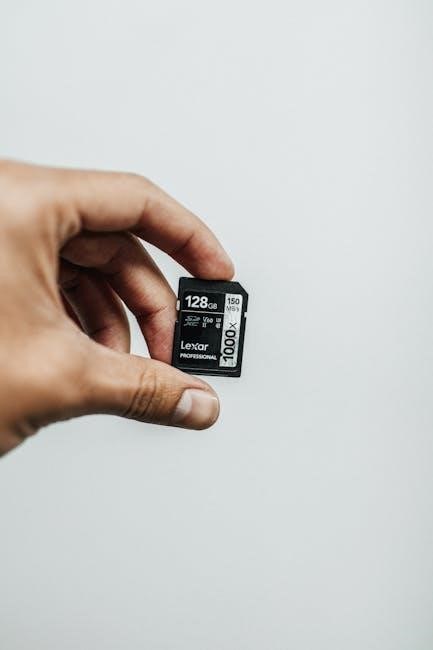
Factors Affecting USB Hub Data Transfer Speeds
Data transfer speeds are impacted by bandwidth limitations, cable quality, device compatibility, and power delivery—critical elements for optimal USB hub performance and efficiency.
USB Hub Bandwidth Limitations
USB hubs, while convenient, inherently share bandwidth among connected devices, creating potential bottlenecks. Each USB standard – 2.0, 3.0, 3.1, and beyond – offers a specific maximum bandwidth. A hub divides this bandwidth across all active ports. For instance, a USB 3.0 hub with 480 Mbps bandwidth, when multiple devices simultaneously transfer data, each device receives a reduced portion.
Older USB 2.0 hubs, capping at 480 Mbps, severely limit speed when handling modern, high-bandwidth devices. Newer standards like USB 3.1 (10 Gbps) and USB4 offer significantly more bandwidth, mitigating this issue, but even these have limits. Consequently, prioritizing essential devices and minimizing concurrent large data transfers are crucial for maintaining optimal performance. Understanding these limitations is key to effective USB hub utilization.
Cable Quality and Length
The quality and length of USB cables significantly impact data transfer speeds when using a hub. Inferior cables, lacking proper shielding, are susceptible to signal degradation and interference, reducing bandwidth and potentially causing connection errors. Shorter, high-quality cables generally deliver more reliable performance than longer, cheaper alternatives.
USB specifications define maximum cable lengths – exceeding these limits can lead to unreliable connections and reduced speeds. For USB 2.0, the maximum length is 5 meters, while USB 3.0/3.1/3.2 is typically 3 meters. Active USB extension cables, incorporating signal boosters, can overcome length limitations, but add cost and complexity. Investing in certified, well-constructed cables is a simple yet effective way to optimize USB hub performance and ensure stable data transfer.
Device Compatibility and Protocol Support
Ensuring compatibility between your USB hub, connected devices, and supported protocols is crucial for optimal data transfer. While USB is generally backward compatible, achieving the highest speeds requires all components to support the same standard – USB 2.0, 3.0, 3.1, 3.2, or USB4. Connecting a USB 3.2 device to a USB 2.0 hub will limit speeds to USB 2.0’s maximum of 480 Mbps.
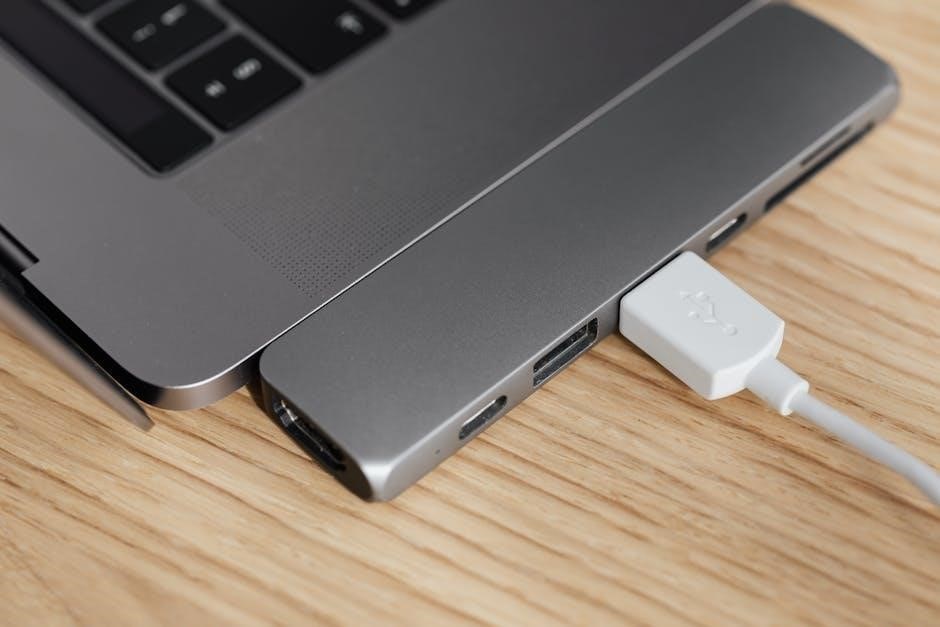
Furthermore, some devices may have specific protocol requirements. Older devices might not fully utilize the capabilities of newer hubs. The recent shift towards USB-C, driven by EU mandates, necessitates adapters for legacy USB-A devices, potentially introducing another point of compatibility concern. Verifying protocol support and device specifications is vital for maximizing transfer efficiency.
Power Delivery and its Impact on Speed
Sufficient power delivery is paramount for maintaining consistent USB hub data transfer speeds, especially with power-hungry devices. Unpowered hubs rely on the host computer’s power, potentially limiting the energy available to each port. This can lead to slower transfer rates or even device malfunction when multiple devices draw significant power simultaneously.
Powered hubs, with their own power adapter, provide dedicated power to each port, ensuring stable operation and optimal speeds. Devices like external hard drives and smartphones require substantial power; a powered hub is essential for these. Insufficient power can throttle performance, impacting data synchronization and charging capabilities. Prioritizing a hub with adequate power delivery is key.

Choosing the Right USB Hub for Your Needs
Selecting a USB hub involves considering powered versus unpowered options, build quality (like recycled plastic), and port configuration—especially the rise of USB-C.
Powered vs. Unpowered USB Hubs
Understanding the difference between powered and unpowered USB hubs is crucial for optimal performance. Unpowered hubs draw power directly from the host device (like your laptop), limiting their ability to support power-hungry peripherals or maintain consistent data transfer speeds when multiple devices are connected simultaneously.
Powered hubs, conversely, include their own power adapter, providing a dedicated power source for connected devices. This ensures stable operation, faster charging, and reliable data transfer, even with numerous high-demand peripherals. They are essential for devices like external hard drives or smartphones that require significant power. Choosing the right type depends on your specific needs and the power requirements of the devices you intend to connect.
Hub Material and Build Quality (e.g., Recycled Plastic)
The material and build quality of a USB hub significantly impact its durability and longevity. While many hubs are constructed from standard plastics, a growing trend focuses on sustainable materials like recycled plastic, offering an environmentally conscious alternative. Beyond material, consider the hub’s overall construction—a robust build ensures it can withstand daily wear and tear.
Look for hubs with reinforced ports and sturdy cabling to prevent damage. A well-built hub not only lasts longer but also provides a more reliable connection, minimizing data transfer errors. Belkin, for example, offers hubs utilizing recycled plastic, demonstrating a commitment to both functionality and sustainability. Prioritizing build quality is an investment in a dependable and long-lasting peripheral.
Port Configuration (USB-A, USB-C) and Future-Proofing
A USB hub’s port configuration is crucial for compatibility and future-proofing. While USB-A remains prevalent, the industry is rapidly transitioning towards USB-C, driven by the EU mandate for a common charging standard. A versatile hub should ideally offer a mix of both port types to accommodate existing and newer devices.
Consider the number of each port type based on your current and anticipated needs. Investing in a hub with multiple USB-C ports prepares you for the increasing adoption of this standard, particularly with the iPhone 15 lineup embracing USB-C. Prioritize hubs that support the latest USB standards (USB 3.2, USB4) to maximize data transfer speeds and ensure compatibility with future technologies.
The Rise of USB-C and EU Mandates
The USB-C connector is experiencing a surge in popularity, largely fueled by a recent European Union (EU) law mandating a common charging standard for small consumer electronics; This legislation, choosing USB-C, aims to reduce e-waste and simplify charging for consumers across Europe. This shift impacts USB hub design, pushing manufacturers to prioritize USB-C ports.
The move towards USB-C benefits users with faster data transfer speeds and increased power delivery capabilities. The anticipated widespread adoption, exemplified by the iPhone 15’s transition, means future-proofing your setup with USB-C hubs is increasingly important. Expect to see more hubs offering exclusively USB-C connectivity, alongside those providing a blend of USB-A and USB-C for broader compatibility during the transition period.
Troubleshooting USB Hub Data Transfer Issues
Identifying bottlenecks—like cable quality, device compatibility, or bandwidth limitations—is crucial for resolving slow data transfer speeds when utilizing a USB hub setup.
Identifying Bottlenecks in Your Setup
Pinpointing the source of slow data transfers with a USB hub requires systematic investigation. Begin by examining the USB cable; a damaged or low-quality cable significantly impacts speeds. Next, assess device compatibility – older USB 2.0 devices connected to a USB 3.0 hub will operate at the slower 2.0 speed.
Bandwidth limitations are also key; hubs share bandwidth among connected devices, so multiple simultaneous transfers can cause congestion. Power delivery can be a factor too, as insufficient power can throttle speeds. Finally, consider the hub itself – an unpowered hub may struggle with power-hungry devices.
Utilizing a USB analyzer tool can provide detailed insights into data flow and identify specific bottlenecks within your configuration, leading to optimized performance.